4K photo enhancer: what it really does, which tools go that far, and what this editor does instead
A 4K photo enhancer adds pixels, up to 3,840 × 2,160 (8.3 million), plus an AI guess at detail, and this site is not one: its editor cleans up, sharpens and relights one photo and returns it at 1024 × 1024 in about 37 seconds for 10 credits. Free with sign-up: 10 credits = 1 image, then from $0.13 per image on a monthly plan.
 Your photo
Style changes (cartoon, 3D, anime) are not reliable yet. If the result looks unchanged, try again or describe the change more specifically.
One-tap edits
- Not an upscaler: results are 1024 × 1024
- Cleans up, sharpens and relights one photo
- Free with sign-up: 10 credits = 1 image
- 4K UHD frame, 3,840 × 2,160 pixels (Wikipedia, read 2026-11-19)
- 8.3 MP
- what this site returns: 1024 × 1024, measured on both of our test runs
- 1.05 MP
- more pixels in a 4K UHD frame than in our result (our arithmetic)
- 7.9×
- per edit here, 10 credits
- ≈ 37 s
What is a 4K photo enhancer?
The words bundle two jobs. An upscaler makes the picture bigger, so a small file reaches 3,840 pixels across. An enhancer cleans it: less noise, less blur, better light. Most “4K photo enhancer” tools do both in one click. 4K UHD is 3,840 × 2,160 pixels, 8,294,400 in all, or about 8.3 megapixels; cinema 4K is 4,096 × 2,160, 8,847,360 pixels (both from Wikipedia). This site does the second job only, and only at 1024 × 1024, so it is not a 4K photo enhancer in the sense most searchers mean.
- 4K UHD: 3,840 × 2,160 = 8.3 MP
- Cinema 4K: 4,096 × 2,160 = 8.8 MP
- This site: 1024 × 1024 = 1.05 MP, no upscaling
Does a 4K photo enhancer add real detail?
Not in the way the word “enhance” suggests. Upscaling adds pixels; the extra detail is guessed. Blau and Michaeli showed in 2018 that making restored pictures closer to the original and making them look natural pull against each other. Imagera’s own guide says detail at 8× and above is largely generated and that a file can be 16K in pixel count without holding 16K of information. Topaz says its Wonder models “are generative”. Sogni describes its 16K profile as deterministic with “no generative repaint”, the opposite approach. Whatever the method, check faces and text at 100% before you print.
- More pixels do not mean more recorded detail
- Generative tools invent plausible texture
- Faces, text and hair are where inventions show
How many pixels do you need for a print?
Photo labs want about 250 to 300 dots per inch (scantips); 150 is often enough for plain-paper inkjet. Our arithmetic at 300 pixels per inch: a 4K UHD frame prints 12.8 × 7.2 inches, an 8 × 10 inch print needs 2,400 × 3,000 pixels, and this site’s 1024 × 1024 result prints 3.4 inches square (6.8 inches at 150). So a 4K file is plenty for a photo-book page and little for a poster, and our result suits screens and small prints. Raw, uncompressed 8-bit colour, a 4K frame is about 24.9 MB in memory; real files are smaller once compressed.
- 300 ppi: 4K UHD = 12.8 × 7.2 in
- 8 × 10 in at 300 ppi = 2,400 × 3,000 px
- 1024 × 1024 = 3.4 in square at 300 ppi
Our test: a clean-up, and a request for “4K quality”
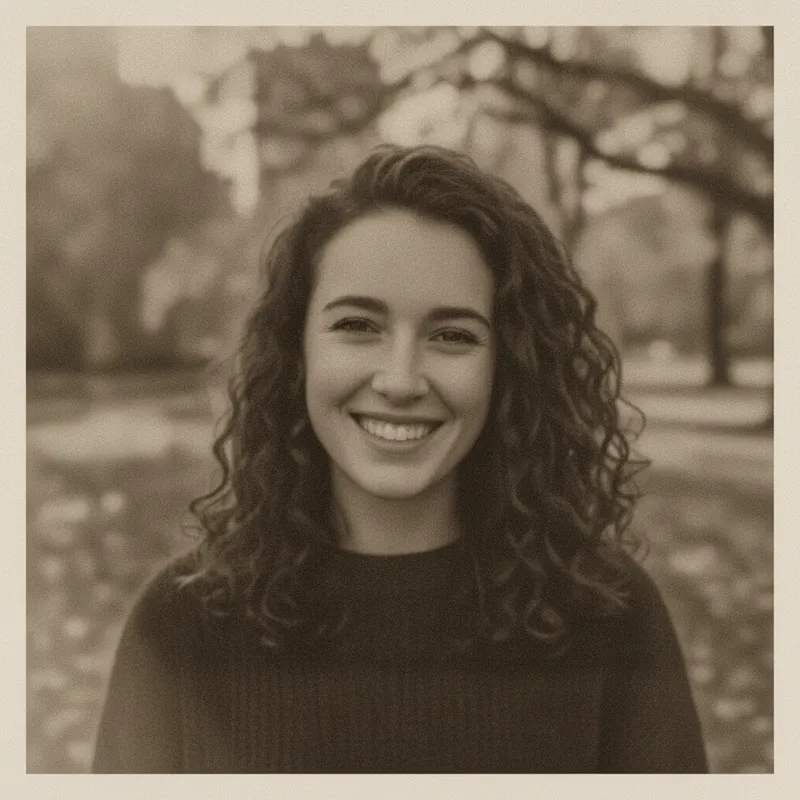
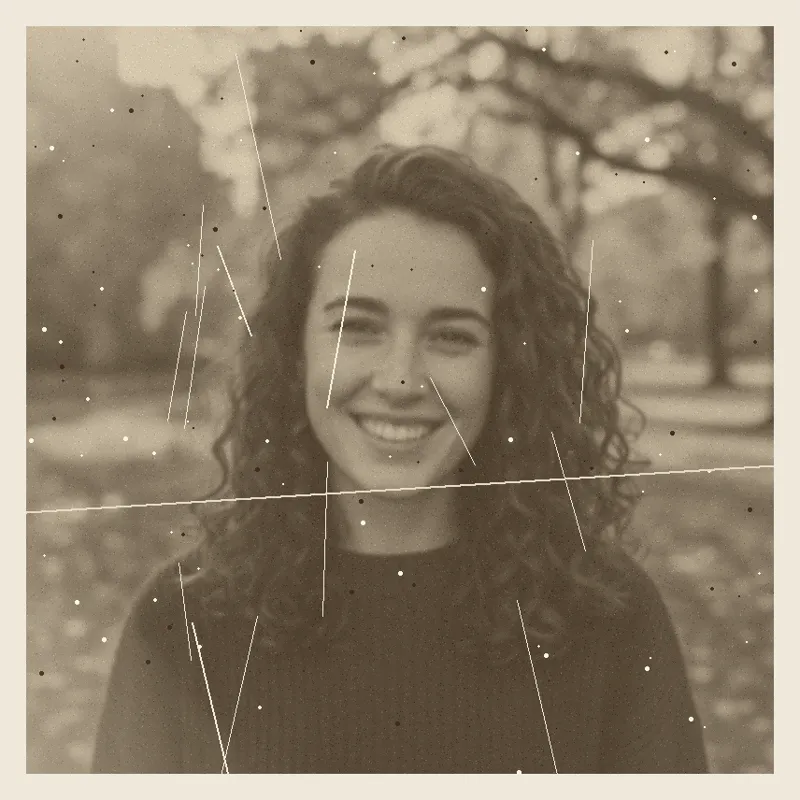
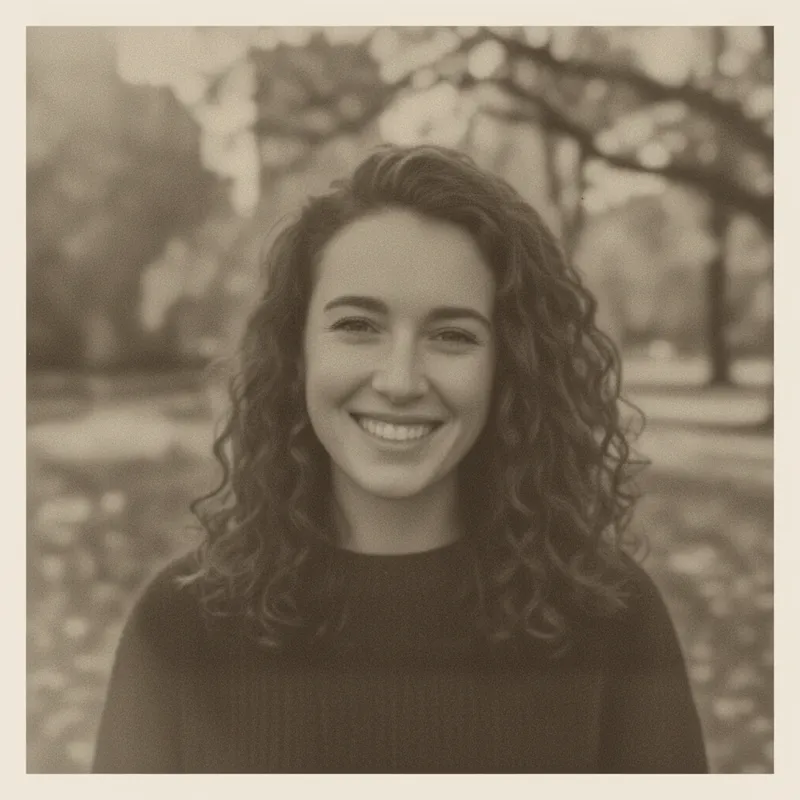
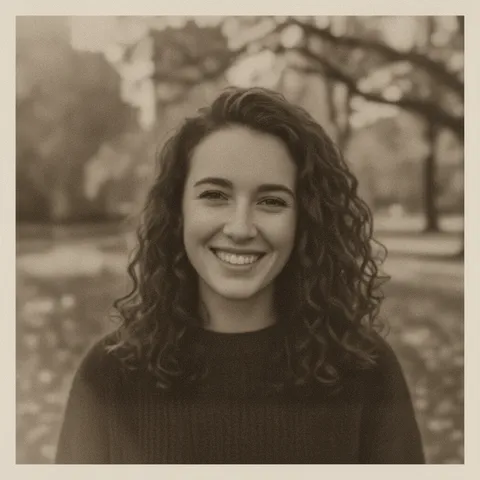
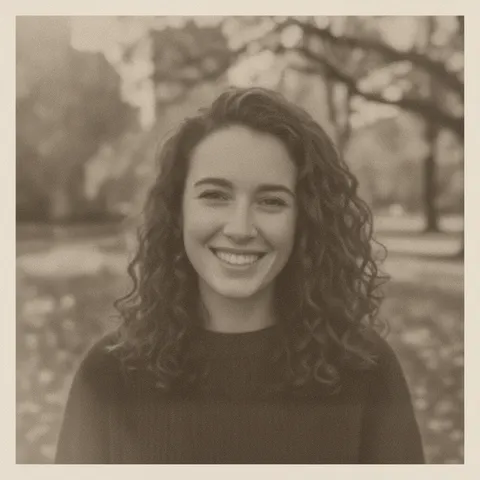
On 2026-11-19 we ran two edits on this site’s editor with one fictional, AI-generated old portrait, 800 × 800 pixels, scratched, grainy and soft. Both results came back 1024 × 1024 and took 49 and 29 seconds. The clean-up removed every scratch and speck, and the eyes, brows and curls look crisper. But the original’s eyes were blurred, so those edges were drawn by the model, not recovered; the smile and eye shape are close, not identical. Asking for “4K quality” changed nothing about size and gave a softer picture. A crude edge-strength measure (variance of the Laplacian on the face) read 282 for the input, 332 for the clean-up and 188 for the “4K” run, but the input number is inflated by scratch lines, so we trust our eyes more. This was two runs on one photo, not a benchmark.
- Input 800 × 800; both results 1024 × 1024
- Scratches and dust removed in both
- Sharper-looking detail is redrawn, not recovered
What this editor does instead of a 4K photo enhancer
Upload one photo and describe the change in up to 400 characters, or tap “Fix the lighting”. It removes scratches and dust, reduces grain, sharpens and relights, keeps the face, and returns 1024 × 1024 in about 37 seconds for 10 credits. If your original is already bigger than 1024 pixels, the result will be smaller than it, so this is for small, soft or damaged photos where the clean-up matters more than the size. To go bigger, enlarge the result in one of the tools in the table below.
- Clean-up, sharpen, relight: yes
- Enlarge to 4K or beyond: no
- Use a tool from the table for the enlarging step
What we read, and what we could not confirm
Pixel counts and print resolution
- 4K UHD is 3,840 × 2,160 (8,294,400 pixels, about 8.3 megapixels); DCI 4K is 4,096 × 2,160 (8,847,360 pixels).Source: Wikipedia, 4K resolution ·
- 16K is 15,360 × 8,640, about 132.7 megapixels: four times 8K, sixteen times 4K. The article says 16K runs only on prototype displays as of October 2026, while also listing a 110-inch 16K TV shown in 2023 and a commercial 16K display from 2019.Source: Wikipedia, 16K resolution ·
- “250 to 300 dpi is optimum to print photo images”; 250 is OK for digital labs; 150 is often enough for plain-paper inkjet.Source: Scantips, printing guide ·
What upscaling does to detail
- The perception-distortion trade-off: as a restored picture gets closer to the original by a measure, it must look less natural. Blau and Michaeli, CVPR 2018.Source: arXiv 1711.06077 ·
- Self-reported by a vendor: its cloud upscaler reconstructs new detail, detail at 8× and above is largely generated, and a file can be 16K in pixels without 16K of information.Source: Imagera blog (self-reported) ·
- Self-reported by a vendor: a promptless, deterministic 16K profile with “no generative repaint”.Source: Sogni RTX VSR (self-reported) ·
What five tools state themselves (vendor claims, not tested by us)
- Free and open source (AGPL-3.0) for Linux, macOS and Windows; needs a Vulkan-compatible GPU; the homepage says “up to 16x” and states no pixel or memory limit.Source: Upscayl (GitHub and homepage) ·
- Open source (BSD-3-Clause); the portable build takes a scale of 2, 3 or 4; a tile option splits big images to save memory, and the ncnn tiling “may introduce block inconsistency”. No maximum size or memory figure is given.Source: Real-ESRGAN (GitHub) ·
- Says “up to 16x pixels”; lists a 30,000 px maximum dimension for its Photoshop plugin; subscription only, and the page we read does not mention a free trial.Source: Topaz Gigapixel (vendor page) ·
- Super Resolution gives twice the width and height, four times the pixels, for example 12 MP to 48 MP; it is in Lightroom, Camera Raw and Photoshop. The page states no maximum size.Source: Adobe (product page) ·
- Says “up to 512 megapixels” and “up to 16x”; a “Start free” button but no credit count and no prices on the page.Source: Let’s Enhance (vendor page) ·
On this site: next steps
- The honest “is 16K real?” page: which tools claim 16K, their stated limits, and whether a file that large helps.Source: This site: 16K upscaler
- Another page on this site, about smart upscalers.Source: This site: smart upscaler
- A page on this site for people looking for an alternative to Picsart’s image upscaler.Source: This site: Picsart image upscaler alternative
- Fixing scratches, fading and colour on old photos with this editor.Source: This site: restore old photos
Not confirmed
- Adobe’s maximum input size for Super Resolution: its help page refused our request, so we state none.Source: Adobe help page (HTTP 403) ·
- Topaz’s free trial, return policy and per-model maximum output size: not on the page we read.Source: Topaz Gigapixel ·
- Let’s Enhance prices and free allowance; Upscayl’s and Real-ESRGAN’s maximum output size and memory use.Source: Let’s Enhance, Upscayl, Real-ESRGAN ·
- Which 4K photo enhancer is best: we did not test any of them, so the table below is stated limits, not a ranking. We also did not open the pages that top the search results.Source: This page ·
Compare
4K photo enhancer and upscaler tools: stated limits, and this site
| Tool | Largest output as stated | Free tier as stated | Price as stated | Platform |
|---|---|---|---|---|
| Upscayl | “Up to 16x”; no pixel limit stated | Free, open source (AGPL-3.0) | No price for the desktop app; cloud prices not on the pages read | Linux, macOS 12+, Windows 10+; needs a Vulkan GPU |
| Real-ESRGAN | Scale 2, 3 or 4 in the portable build; no size limit stated | Free, open source (BSD-3-Clause) | No price | Python script or portable executable with command-line options |
| Topaz Gigapixel | “Up to 16x pixels”; Photoshop plugin up to 30,000 px | Free trial not mentioned on the page | Subscription: Personal $29 a month, or $127 for the first year (sale price shown, list $149) | Mac and Windows, standalone or plugin |
| Adobe Super Resolution | 2× width and height (4× pixels); 12 MP to 48 MP in Adobe’s example; no maximum stated | A free trial is shown | Lightroom plans from US$11.99 a month, as shown | Lightroom, Camera Raw, Photoshop |
| Let’s Enhance | “Up to 512 megapixels”, “up to 16x” | “Start free”; no credit count stated | No prices on the page read | Web app |
| This site (not an upscaler) | 1024 × 1024; no upscaling | Free with sign-up: 10 credits = 1 image | 10 credits per image, from $0.13 on a monthly plan | Web, sign-in required |
Step by step
How to get a bigger, cleaner photo with this editor and another tool
Start from your largest, sharpest original
A small or blurry file cannot be rescued by any tool, only dressed up. Keep the untouched original; every step below works on a copy.
Clean it up here if it is small, soft or damaged
Upload the photo, tap “Fix the lighting” or paste one of the prompts below. It takes about 37 seconds and 10 credits, and the result is 1024 × 1024. If your original is already larger than that, skip this step or the clean-up costs you pixels.
Enlarge it in a tool from the table
Pick one whose stated limit fits your target, for example 3,840 pixels across for 4K, and check its free tier and price on its own page first. This site does not do this step.
Check at 100% before you print or post
Zoom in on faces, hands, text and hair. Added detail is guessed, so compare it with the original and keep the original.
Prompts
Clean-up and lighting prompts for this site’s editor
The first two prompts were each run once on this site’s editor on 2026-11-19 with one fictional, AI-generated old portrait, and the results are the two pictures on this page. The third was not run. None of them enlarges a photo, and we have not tested them in other tools. Results vary with the photo.
Clean up a soft, scratched photo
Restore old photosRun once on this site’s editor on 2026-11-19 with the fictional old portrait. The result is the first image on this page: scratches gone, 1024 × 1024.
Clean up a soft, scratched old photo
Keep my face, hair and clothes exactly the same. Clean up this soft, scratched old photo: remove the dust, spots and white scratch lines, reduce the grain, sharpen the eyes, curls and sweater texture, and fix the flat faded lighting with gentle contrast. Keep the warm sepia tone. No text, logos or watermarks.
What happens when you ask for “4K quality”
The 16K question, answeredRun once on 2026-11-19 with the same portrait. The size stayed 1024 × 1024, and the result looked softer than the first edit, not sharper.
Asking for “4K quality” (size stays 1024 × 1024)
Keep my face, hair and clothes exactly the same. Make this photo ultra sharp, 4K quality: crisp eyes, fine hair strands, clean skin, balanced lighting, and remove the scratches and dust. Keep it black and white with the same warm tone. No text, logos or watermarks.
Fix flat or harsh light only (not run)
More edits in the AI photo editorWe did not run this one. It asks for the lighting to change and nothing else.
Even out flat or harsh light, nothing else
Keep my face, hair, clothes and the background exactly the same. Only fix the lighting: lift the shadows a little, soften harsh highlights on the skin, add gentle contrast and keep natural colours. Do not smooth the skin. No text, logos or watermarks.
Pricing on this site
Credit packs or a monthly plan.
Credits come in one-time packs ($4.99 for 50 credits, $9.99 for 120 credits, $19.99 for 300 credits); each image costs 10 credits. Or pick a plan from $9.90 a month (500 credits), cancel anytime.
Refund policy- Basic · $9.90/month500 credits a month · about 50 images · $0.20 per image
- Pro · $19.90/month1500 credits a month · about 150 images · $0.13 per image
Billed every month and renews automatically. Cancel anytime in Settings; you keep the plan until the end of the month you paid for. Each month's credits are for that month; unused ones expire.
Refund policyPhoto tools on this site
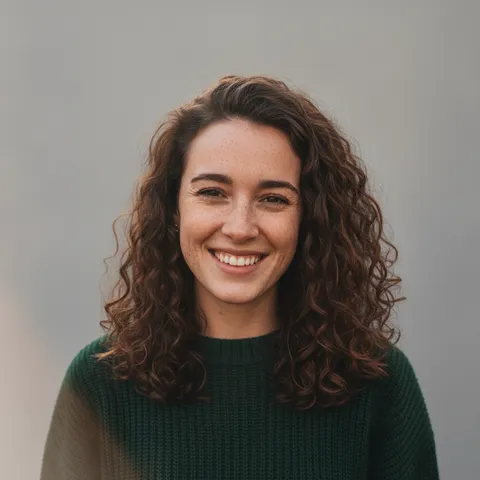
Images only: edits, clean-ups and effects for your own photo, at 1024 × 1024

FAQ
Questions, answered
What is a 4K photo enhancer?
A tool that makes a picture bigger, so it reaches about 3,840 pixels across, and usually also reduces noise and blur. 4K UHD is 3,840 × 2,160 pixels, about 8.3 megapixels. The extra detail in an upscaled image is guessed by the software, not recorded by the camera.
Does this site upscale a photo to 4K?
No. This site’s editor returns 1024 × 1024 pixels, about 1.05 megapixels, from the square photos we tested, and it did not change size when we asked for “4K quality”. It cleans up, sharpens and relights, then you can enlarge the result with a tool from the table.
Is there a free 4K photo enhancer on this site?
Partly: new accounts get 10 free credits after signing in, enough for 1 free image (once per account, valid for 7 days, while the day's new-account gifts last). Each image costs 10 credits and takes about 37 seconds; after that, from $0.13 per image on a monthly plan. It is a clean-up, not a 4K upscale.
How do I enhance a photo to 4K for free, or upscale an image to 4K free?
Two tools in our table state they are free: Upscayl (free and open source, for Linux, macOS and Windows, needs a Vulkan GPU) and Real-ESRGAN (open source, command line). Let’s Enhance shows a “Start free” button without saying how much is free. We did not test any of them, so check each one’s page.
Does AI upscaling add real detail?
Mostly it adds plausible detail. Research on the perception-distortion trade-off says looking natural and staying close to the original pull against each other, and one vendor says detail at 8× and above is largely generated. Another vendor says its 16K profile does no generative repaint. Compare faces and text with the original at 100%.
How big can I print a 4K image?
Our arithmetic at 300 pixels per inch: a 4K UHD frame (3,840 × 2,160) prints about 12.8 × 7.2 inches; at 150 pixels per inch, about 25.6 × 14.4 inches. An 8 × 10 inch print needs 2,400 × 3,000 pixels at 300. Photo labs quote 250 to 300 dots per inch as best.
What is the best 4K image enhancer?
We have not tested any, so we name none as best. The table lists what Upscayl, Real-ESRGAN, Topaz Gigapixel, Adobe Super Resolution and Let’s Enhance state about their limits, free tiers and prices, as read on 2026-11-19. Try the free ones on your own photo first.
What about 16K?
A 16K image is 15,360 × 8,640 pixels, about 132.7 megapixels, sixteen times a 4K frame. This site does not make one either. Our 16K page lists which tools claim it, their stated limits, and whether a file that large helps.
Got a soft or scratched photo?
Upload one photo, describe the clean-up, and download a 1024 × 1024 result in about 37 seconds.
Clean up a photo hereIndependent site. Not affiliated with or endorsed by Upscayl, Real-ESRGAN, Topaz Labs, Adobe, Let’s Enhance, Imagera or Sogni; their names are used only to say what their own pages state. This site does not upscale or enlarge photos: its results are 1024 × 1024 pixels. Facts about other tools come from their own pages, read on 2026-11-19, and are not tested by us; prices, limits and availability may change.